Obtener tu factura
Ayuda general
Obtener tu factura
Después de comprar créditos, puedes ver y descargar una factura profesional para cada transacción. Las facturas están disponibles para todas las compras de créditos completadas.
Cómo obtener tu factura
Ve al Perfil
Navega a tu página de Perfil desde la barra lateral del panel. Baja hasta la sección Historial de transacciones.
Encuentra tu transacción
En la sección Historial de transacciones, localiza la compra de créditos para la que necesitas una factura. Las compras completadas mostrarán un enlace 'Ver factura'.
Ver la factura
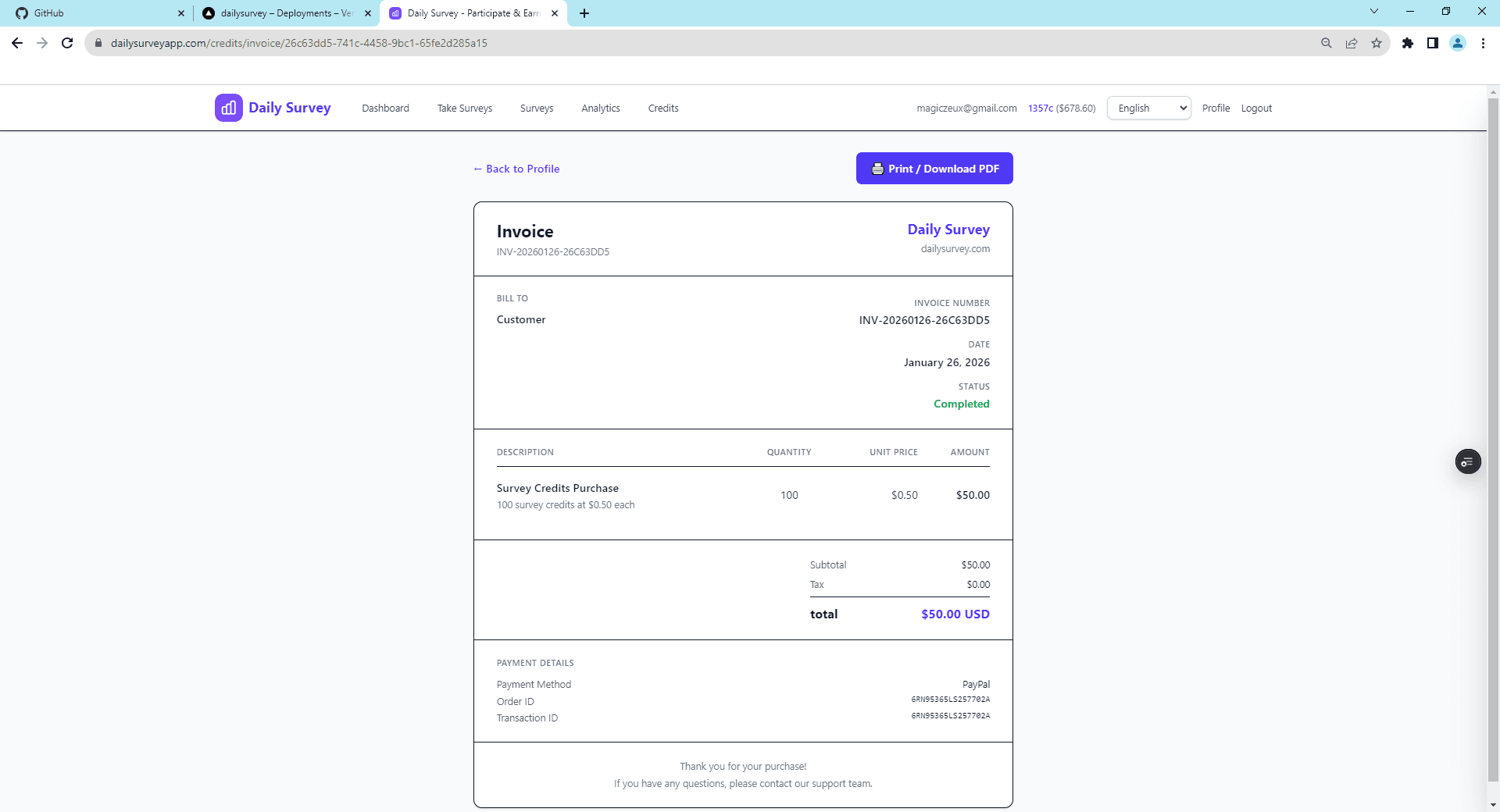
Haz clic en 'Ver factura' para abrir la página completa de la factura. La factura incluye todos los detalles de compra, información de pago y un número de factura único.
Imprimir o descargar PDF
Haz clic en el botón 'Imprimir / Descargar PDF' en la parte superior de la factura. Usa el diálogo de Impresión de tu navegador para guardar como PDF o imprimir una copia física.
Qué incluye la factura
📋 Detalles de la factura
- • Número de factura único (ej. INV-20260224-A1B2C3D4)
- • Fecha de compra y estado
- • Créditos comprados con precio unitario
- • Subtotal, impuesto y monto total en USD
💳 Información de pago
- • Método de pago (PayPal)
- • ID de orden de PayPal
- • ID de transacción de PayPal
💡 Consejos
- • Las facturas solo están disponibles para compras de créditos completadas
- • Usa la opción 'Guardar como PDF' de tu navegador en el diálogo de Impresión para descargar
- • La factura incluye tu nombre y correo electrónico para el registro
Temas relacionados
¿Aún tienes preguntas?
Consulta nuestras preguntas frecuentes o contacta a soporte para obtener ayuda